Showing posts with label GOOGLE SERVICES. Show all posts

Thursday, 4 August 2016

How to Set Up Google Prompt

You can enable google Prompt on your phone to notify you of any activity that is going on in your account.
You get notifies when you or someone logs into your email account in a form of text message.

Illustrated below is how to setup your account so you get notified of any activity going on in that account.


Before enabling Google Prompt, first enable two-step verification for your Google account and you have already enabled two-step verification, you can skip this part.
  •  Go to myaccount.google.com and sign in to your Google account.
  • Select 'Signing in to Google,' using 2-Step Verification.
  • Click on 'Get started' and enter your password once again.
  • Now provide your phone number you want to use for authenticating, and choose either an SMS or phone call for verification, and click on 'Try it.'
  •  Enter the 6-digit code from the SMS or phone call and select 'Next.'
  • For setting up two-step verification, click 'Turn ON.'

Monday, 17 August 2015

Restoring The Glory Of Breast feeding

IN Nigeria and Africa as a whole, breastfeeding has been the most culturally acceptable mode of feeding babies within the first two years of life. As a practice, breastfeeding has a strong connotation for promoting the bonding that started at pregnancy between mother and child.

Breastfeeding in the Nigerian setting has always been a thing of pride.   Culture actually demands that every mother should breastfeed her child except otherwise advised. Nigerian mothers used to be well known for breastfeeding anytime and anywhere.

Some even breastfeed while working on the farms, which is why advocates of breastfeeding recommend the continuation of the practice by breastfeeding babies wherever mothers earn their living.

Breast milk serves as the best food for babies that are less than six months. Breastfeeding a child provides all the goodness of breast milk that are known to be uniquely superior and vital for optimal infant physical, emotional and mental growth. It is essential for their healthy development and all other short and long term outcomes.

The World Health Organisation (WHO) recommends that infants should be exclusively breastfed for the first six months of life to achieve optimal growth.

In response to the importance of exclusive breastfeeding, the Federal Government established the Baby-Friendly Hospital Initiative (BFHI) in Benin, Enugu, Maiduguri, Lagos, Jos and Port Harcourt with the aim of providing mothers and their infants a supportive environment for breastfeeding and to promote appropriate breastfeeding practices, thus helping to reduce infant morbidity and mortality rates.

It is, however, worrisome and unacceptable that Nigeria currently has one of the lowest exclusive breastfeeding rates in Africa.  In a National Demographic Health Survey (NDHS), the rate of exclusive breastfeeding in the country stood at 13 per cent.

Despite sustained efforts, exclusive breastfeeding rates in Nigeria have fallen well below the WHO/UNICEF recommendation of 90 per cent for children less than six months in developing countries. Currently, exclusive breastfeeding rates in Nigeria compare poorly with other neighbouring countries in Africa.

As the global community marks this year’s edition of the annual World Breastfeeding Day with the theme – “Breastfeeding And Work: Let’s Make It Together”, more involvement and dedication is required to galvanise multi-dimensional support to enable women everywhere work and breast feed.

Nursing mothers in particular require more support to combine breastfeeding with work in the formal, informal and home setting. The private sector must get involved in the process of encouraging breastfeeding mothers through provision of crèches and breastfeeding rooms in work places while approving flexible work hours for mothers.

The promotion of actions by employers to become baby friendly and actively facilitate the support of employed mothers to preserve and reap the benefits of the age-long practice of breast feeding, is a task that must be done.

Wednesday, 8 July 2015

What to know about google Adsense.

So many people have written about getting adsense approval that you no longer know what to believe. During my search for tips on getting adsense approval, I read some blog post and some
bloggers recommend having at least 20 blog post and domain age should be at least 6 months before applying but I got approved with just 7 unique blog post.
It is a 15 weeks old blog having just 11 pages (7 post and 4 pages).
So the truth is, to get adsense approval you need to focus on creating quality content and not quantity. Do not copy images from other websites or from Google images, try creating your own images or alternatively you can get free images from sites like pixaby.
Also, domain age is not a factor in getting Adsense approval.
I hope my experience with Google Adsense inspires you. I wish you good luck in your Adsense adventure.

Thursday, 25 June 2015

How to hide your Ip Address and bypass seccurity chcks

If you want to change your IP address on your home computer for any reason of your choice, there are few ways that might work for you—some simple, some not. Before trying more complicated/technical methods described below, you can try something that's very easy.
For Instance:
  • Simply turn off or unplug your modem for about five minutes. (You don't have to turn your computer off.) In many cases this alone will change your IP address when you go back online.
  • If that doesn't work, try unplugging your modem overnight and checking your IP address the next morning.
To check the IP address you're currently using, simply go to your command prompt and type "ipconfig/all" you will see the ip address your wireless or Lan is currently assigned to.

Have laptop, go mobile

If you have a laptop, you can switch to a new IP address very easily, if only temporarily—but you can do it anytime you want.
Just go to any coffee shop, bookstore or other place that offers free wireless Internet (Wi-Fi®). Your IP address will automatically change because you'll be using a different Internet connection to send email or join chat rooms.

How about a proxy?

If you're trying to change your IP address primarily because you want to access web-based forums, you may wish to look into using a proxy server.

What next?

If you're not the technical type, contact your Internet service provider (ISP) and ask them if they are able to change your IP address or how long your connection needs to be off for your IP address to change.
If you're up for more-advanced methods, and you use Windows, try the steps below and see if your IP address changes.

For Windows users

- Computer connected directly to a cable or DSL modem
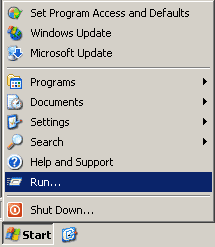
  1. Get to a command prompt. (START, run, cmd).
 

  1. Type "ipconfig /release" (without the quotes, on the command line by itself).
  2. Shut down computer.
  3. Turn off computer.
  4. Turn off all ethernet hubs/switches.
  5. Turn off cable/DSL modem.
  6. Leave off overnight.
  7. Turn everything back on.

For networks using a Router

  1. Log into the router's admin console. (Often http://192.168.1.1/)
  2. Release the IP address (method varies by router manufacturer)
  3. Turn off router, ethernet hubs/switches, and the cable/DSL modem
  4. Leave off overnight
  5. Next day, turn everything back on
If you are using a cable/DSL modem and a router, you may wish to connect your computer directly to the cable/DSL modem. Please note that this could significantly impact your system security.
If you have a router and you're still not having any luck, check to see if there is a "Clone MAC Address" option. Using it should change your IP address; however, in most cases you'll only be able to do it once.

Monday, 23 March 2015

How to Fix Google Play Store “No Connection- Retry” Error

Fix : Google Play Store “No Connection- Retry” Error
When accessing Google Play Store without an internet connection, it always brings “No Connection- Retry” Error but if you have a working internet connection active and still shows this error when trying to access play store, It might be due to cache of the Play store, or even error code in the Google play store, 
So,
Here are 5 different ways to fix Google Play Store “No Connection – Retry Error
1. If you are seeing this error, the first thing to come to your mind is Internet connection, check your data connection if it is active, you can try other apps using internet connection also to see if its really working. But if the error persist, try the next methods to fix the error.
2. Most times, Google play store will not work if your phone date and time is incorrect.  Check if the data and time on the device is correct, if not, set the time and then re-open play store, if play store still don’t work after correcting the time, then check the next method.
3. Another main reason that might cause play store error is the cache of the Play store app. So, try clearing the cache by going to Settings > Apps and select “Google Play Store” app, open the app and click the clear cache and force stop this app button.
Recommended :How To Speed Up Your Android Phone Within A Minute
4. If after clearing the app cache, Google play store still shows the error, then you will need to remove your Google account and add it back. To do this, Go to Settings > Accounts ,then remove your Google account and add it back. Now open back Google Play store, it will ask you to accept the licensing terms.  Accept to continue. This method might be able to fix most of the Google play store errors.
5. If you still can’t fix the error with the above methods, reinstall the Google play store app or update the app(If updates is available) by downloading the apk file and install it.
If none of the methods work for you, Am afraid you would have to reset your android device.


Friday, 18 July 2014

HOW TO USE GLO BORROW ME CREDIT

Glo has launched path breaking product called Borrow Me Credit for Prepaid Customers.  This is the most innovative service launched by Glo. Currently, when customer runs out of recharge, he has to go to out to buy a recharge card and top up his account. Sometimes there are situations when customer cannot go out to buy recharge card; during late night hours, while travelling, etc. Under these emergency situations customer is not able to make call due to low balance and there is opportunity loss for Glo.

Now, we offer solution to such customers who have consumed their airtime and cannot go out immediately to buy recharge card. Customer can send request to avail the facility of airtime credit by sending text on the short code. Customer will repay his credit by recharging his account and credit airtime will be deducted from his balance.

The customer is required to request through the predefined short code *321#, which will provide the customer the amounts qualified for. To get specific denominations use the following short codes:

    *321*50# for N50,
    *321*100# for N100,
    *321*200# for N200,
    *321*500# for N500
    *321*1000# for N1000

The Emergency Airtime Service allows active Globacom prepaid customers who meet the eligibility criteria set out in the table below.

Eligibility Matrix

Denomination (N)Time on Network (Months)Average Monthly RefillsAverage Monthly Usage (N)
5040200
10040400
20040800
500402000
10001205000

The airtime advanced is subject to a service charge as mentioned below


Service Charges

Denomination (N)Time on Network (Months)Average Monthly Refills
50545
1001090
20020180
50050450
1000100900

Tuesday, 1 October 2013

How To Use Text Effects In Google Plus Posts like Bold, Italics and underline

Unlike facebook that requires certain applications to update your status with text efffects, google plus allows you to do this without any third party application. Google plus allows you to post updates with text effects such as bod, italics, strikethrough and so on. I logged in to google plus last week and saw someone in my circle with this wierd looking post and that got me curious till I asked him how he did it. There’s no special trick, just a couple of characters and you can post your update on google plus with nice text effects.
- Bold text in google plus
To make your post appear in bold characters, you only need to put an asterisk (*) before and after your post. *how to post google plus update with bold text* will appear as how to post google plus update with bold text.

- Italics text in google plus
To have your post appear in italics, put an underscore (_)before and after your text. For example, _how to use italics text effect in google plus_ will appear as how to use italics text effect in google plus.
- Strikethrough text in google plus
To do this, just put a hyphen before and after your text. For exampe, -update my google plus status with strikethrough text- will appear as update my google plus status with strikethrough text
- Some Combinations?
Oh yeah, you can definitely do some combo like writing your post in bold italics. You just need to start and end your update with a hyphen and an asterisk. For example, *-google plus text effect-* will appear as google plus text effect.
 I was wondering if they would allow us to add some color to our google plus posts but it looks like a bad idea, there would be a lot of color riot on your news feed that will be so annoying. lol. Anyway, share this post if it helps.

HOW TO USE GOOGLE+ PROFILE FOR BLOGGER

You’ve definitely run some google searches and seen some blog author’s google plus profile picture right beside search results, right? In a bid to make this work for my blog, I tried lots of stuffs out of which none of them worked. Just today, I logged in to blogger in draft just to see the upcoming blogger features and saw this option at the top right of the screen asking me to switch my blogger profile to google plus. It sounded good and I continued, reading the benefits and everything about it.
One of the key benefit that made me proceed with the switch was the fact that my google plus profile will be associated with site on search result pages. Also, whenever I comment on my blog or any other blog supporting comments with google account, my google plus profile will be linked instead of that boring blogger profile. It’s a good one coming from google though because I never like blogger profile layout, the color scheme and all.

How Do I Link My Blog To Google Plus
This feature isn’t yet published officially because it’s only still available in Blogger in draft where blogger’s upcoming features are first tested out. To switch your blogger profile to google plus profile and associate it with your blog:
-  You need to log in to draft.blogger.com
- You should see a pop up at the top right corner asking you to make the switch.

- Just follow the next couple of steps and enter your google account password when prompted.
- Mark the check box at the last stage and complete the profile switch.
What Are The Benefits Of Linking Your Google Plus Profile To Blogger?
Switching your blogger profile to google plus has lots of benefits and one of the one I like most is that you have one less online profile to worry about.
-You get access to upcoming Google+ features on Blogger
-Your posts gets highlighted in Google search results for your social connections
-Maintaining one identity instead of duplicate ones
Information on your blogger profile won’t automatically transferred to your google plus profile, you have to select those information you want to display on your new profile including your displayed blogs. Also, this switch will make the blogger widget on your profile display your google plus profile instead and all existing comments made with with blogger profile will automatically redirect to your google plus profile when clicked.
Though it is said that my posts gets highlighted in Google search results for social connections, I haven’t been able to see this since I made google plus my default blogger profile. I made the change just a few hours ago, just hoping it’s really gonna have any effect in search results. Even if it doesn’t, I still feel convenient with that ugly looking blogger profile gone.

Monday, 30 September 2013

HOW TO MERGE GOOGLE+ WITH GOOGLE ANALYTICS

Over the past few weeks Google has been rolling out an update which allows you to merge Google Analytics with your Google+ account. This is something that will be welcomed by everyone. The new features and old ones can be really beneficial for gauging the progress of campaigns if used in the correct manner.
If you have used Google+ as your blog, you would have realized that other users either share your original post or share the reposts. Such a system lets you know whenever someone is sharing and also allows you to engage with others. If you are hosting a blog independently then you will realize the problem of the absent ‘+’ mention. This has led to the increased use of monitoring services similar to Radian 6 and other web analytics tools which emphasize on social media.

Using the new features
In the updated Google Analytics, you can go to your profile and then select ‘social’ under the ‘traffic sources’ tab. You will get a sources tab which will have Google+ as a component. By selecting the ‘activity stream’ you can see all the comments, posts, and shares. So, if someone does not ‘+’ mention you in the post, you can still engage with them.
Google analytics will also tell you which pages are the most active socially. You can go to these pages and then see the type of audience that you are reaching out to and what is the general opinion about your post. Some of your posts which will be discussed a lot will also have the most +1s. Your posts will be shared more when users want to take the post on their personal page or want to carry the engagement offline.
Do not forget the old features
The new features will definitely come in handy, but there are certain old features that you should not forget about. One of these features is called the ‘tracking code’. This code should be posted with every link that you share and should be changed for different social media platforms. By doing this you can maintain a single campaign. If you have not been doing this already then you should go to the Google Analytics URL Builder page. All you need to do is paste the link which you wish to promote in the ‘Website URL’ box present on the URL Builder page. Give the campaign a name, add the social media platform you are using in the campaign medium button and then hit the ‘Generate URL’ button. You will have your link which can be shared wherever you wish.
Google URL Builder
You can also create ‘advanced segments’ which give you a lot more details regarding social media referral. You can use this feature for analyzing which site is giving you the most traffic. To create an advanced segment, you need to go to the advanced segments tab while you are in the section for standard reporting. Then click on the ‘+ New Custom Segment’.

HOW TO BLOCK google+ NOTIFICATION

Getting 10 notifications from a person in one day just because he shared 10 posts on Google+ can be really annoying and even if you remove such people from your circle, they’ll still be able to share posts with you so far your profile is a public one.


Blocking such people generating spammy notifications may stop it but it’s not the best option since you’ll be making enemies with them, there’s an option in Google+ I never saw till just a few days ago. I was able to stop getting notification from those friends and since then, I only get notified about posts I comment on or subscribed to.
How do you stop those notifications then?
- You need to go that that fiend’s particular profile
- Scroll down a bit, right below that person’s circles, you should see what looks like this:
block or stop google+notifications
- Hit the “Mute” link as shown above.
- A box pops up, hit the “Mute” button and that’s it.
block google+ notifications
When you do this, you stop getting notified of the person’s update. You may still see those updates in your streams, but you have the option of blocking that as well by removing the person from your circles.

Even since I started using the mute button, I’ve been getting much less crappy notifications and I think I prefer it that way. One probably won’t need this if only some people learn not to spam their friends like all the time.

I HOPE THIS HAVE BEEN VERY INFORMATIVE,

Get the Full Material delivered to your Email, . Call us on 07034538881

Follow Us On Twitter,
Like Us On Facebook,
Join Our Cycle On Google+

we can keep u updated by subscribing for free using your email
For more clarification, Please Leave a comment.

Related Posts Plugin for WordPress, Blogger...