

 When you start a document, there are no section breaks because the entire document consists of one section. A section break is the point at which you end one section and begin another because you want some aspect of page formatting to change.
 You can divide a document into any number of sections and format each section the way that you want. Throughout this article, keep in mind that a section break acts as an embedded code that stores or maintains the properties of the section above it.
For tips about using section breaks, refer to the "Section Break Tips" section of this article.
Section and page properties include the following settings:
Page Orientation (Portrait/Landscape)
Margins
Columns
Line Numbering
Vertical Alignment
Headers & Footers
Page Numbering
Paper Size
Paper Source
It is recommended that when you are working with section breaks you turn on Show/Hide. To do this, follow these steps: Margins
Columns
Line Numbering
Vertical Alignment
Headers & Footers
Page Numbering
Paper Size
Paper Source
- On the Tools menu, click Options, and then click the View tab.
- Under Formatting Marks, click to select the All check box.
- Click OK.
Using section breaks
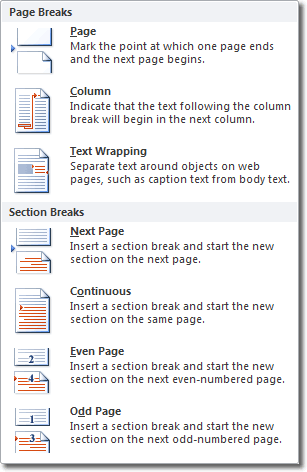
To create a new section, click the Break command on the Insert menu. In Normal view, Word displays a double dotted line and the words Section Break (Type of Section Break) to indicate a section break and its type. The line is not printed.The breaks and their purposes are described in the following table.
| Type | Characteristics |
|---|---|
| Next Page | Word breaks the page at the section break. The new section starts on the next page. Use this section break if you want to apply different page numbers, headers and footers, orientation, vertical alignment, or paper size to the sections in the document. |
| Continuous | Word inserts a section break and begins the new section on the same page. If the two sections have different settings for page size or orientation, the new section begins a new page even if you select Continuous. Use this section break if you want to have different column formatting or margins on the same page. If there are multiple columns in the previous section, Word balances the columns above the section break and then fills out the page with the new section. |
| Odd Page | Word begins the new section on the next odd-numbered page. This section break is often used for chapters that begin on odd-numbered pages. NOTE: If the section break falls on an odd-numbered page, Word leaves the intervening even-numbered page blank. |
| Even Page | Similar to Odd Page, but Word begins the new section on the next even-numbered page. |
To insert a section break
- Click where you want to start a new section.
- On the Insert menu, click Break.
- Under Section Breaks, select the option that describes the section break that you want.
- Click OK.
Determining the type of section break
In Word, the type of section break is shown on your screen, in parentheses, after the words Section Break. This is not where the properties of that section break are stored. The properties for the type of section break indicated on the screen are stored in the next section break (which may have a different type of section break indicated). If there is no additional section break in your document, the properties for that section break are stored in the last paragraph mark of the document. The section breaks act as an embedded code that stores or maintains the properties of the section above it.For example, suppose you have a one-page document and half-way down the page you insert an Odd Page section break, and farther into your document, on Page 1, you insert a Next Page section break. In Normal view, you see the following:
::::::::::::::::::::::Section Break (Odd Page):::::::::::::::::::::::::::::


::::::::::::::::::::::Section Break (Next Page)::::::::::::::::::::::::::::
Under Section start, it indicates that the section is New Page. (See note below.)
If you place your insertion point between Section Break (Odd Page) and Section Break (Next Page), the status bar shows Page 3 Sec 2.
If you place your insertion point below Section Break (Next Page), the status bar shows Page 4 Sec 3. The settings for this section break are stored in the last paragraph mark of the document (because there are no more section breaks in the document).
Note To see the actual properties for any of the sections in this example, follow these steps:
- Click above the section break for which you want to view the properties.
- On the File menu, click Page Setup, and then click the Layout tab.
Section Start indicates the type of section break, for example, Odd Page.
The settings for the section break are stored in the section break below where your insertion point is located or as shown on the screen.
Note A section break indicated on your screen as Next Page is defined as New Page on the Layout tab of the Properties dialog box.
To delete a section break
For more information about deleting and troubleshooting section breaks, click Microsoft Word Help on the Help menu, type Section Break in the Office Assistant or the Answer Wizard, and then click Search to view the topics returned.Section break tips
- You can save a section break and the formatting it contains as an AutoText entry for future use.
- You can copy section formatting by copying the section break in normal view. When you paste a section break into a new location, the text above the section break takes on the formatting contained in the section break.
When you copy a selection that contains a section break and paste it into a Word document, the text above the section break assumes the section level formatting of the pasted section break.
This behavior also occurs if you copy the last paragraph mark and paste it into a document, because the last paragraph mark is an implied section break.
For example, if you insert a continuous section break in a document, the section above the inserted section break is Continuous, and the section below is New Page.
Similarly, when you delete a section break, the text that preceded the section break becomes part of the section that follows, and it assumes the formatting of that section. The following example, using a two-section document, illustrates this concept:Section 1 is formatted for three columns and contains no headers or footers. Section 2 is formatted for two columns and contains a footer. If you delete the section break between the two sections, Word formats the entire document for two columns and places a footer on each page.Notes
Section level formatting includes headers and footers, columns, section start setting, line numbers, margins, paper size, paper source and orientation, and vertical alignment.
When you select text to copy and paste, remember that you are copying section level formatting when you include a section break or the last paragraph mark in your selection. If you copy a selection that does not contain a section break or the last paragraph mark, section layout formatting is not affected when you paste the selection. - You can change the type of section break without deleting the current section break by doing the following:
- Place the insertion point into the section that you want to change.
- On the File menu, click Page Setup.
- Click the Layout tab.
- Under Section Start, select the type of section you want and then click OK.
238124 Continuous section break becomes next-page break in Landscape

 Properties
Article ID: 291184 - Last Review: January 31, 2007 - Revision: 3.2
APPLIES TO
- Microsoft Office Word 2003
- Microsoft Word 2002 Standard Edition
- Microsoft Word 2000 Standard Edition
- Microsoft Word 97 Standard Edition
Keywords: | kbinfo kbhowto KB291184 |
Give Feedback
Was this information helpful?
| ||
| ||
|
How much effort did you personally put forth to use this article?
| ||
| ||
| ||
| ||
|


